Tools for your team, from the first report to manager review.
Log a guest issue, decide who will handle it, record the follow-up and review the outcome. Here’s what your team can do in MyHotelCare.
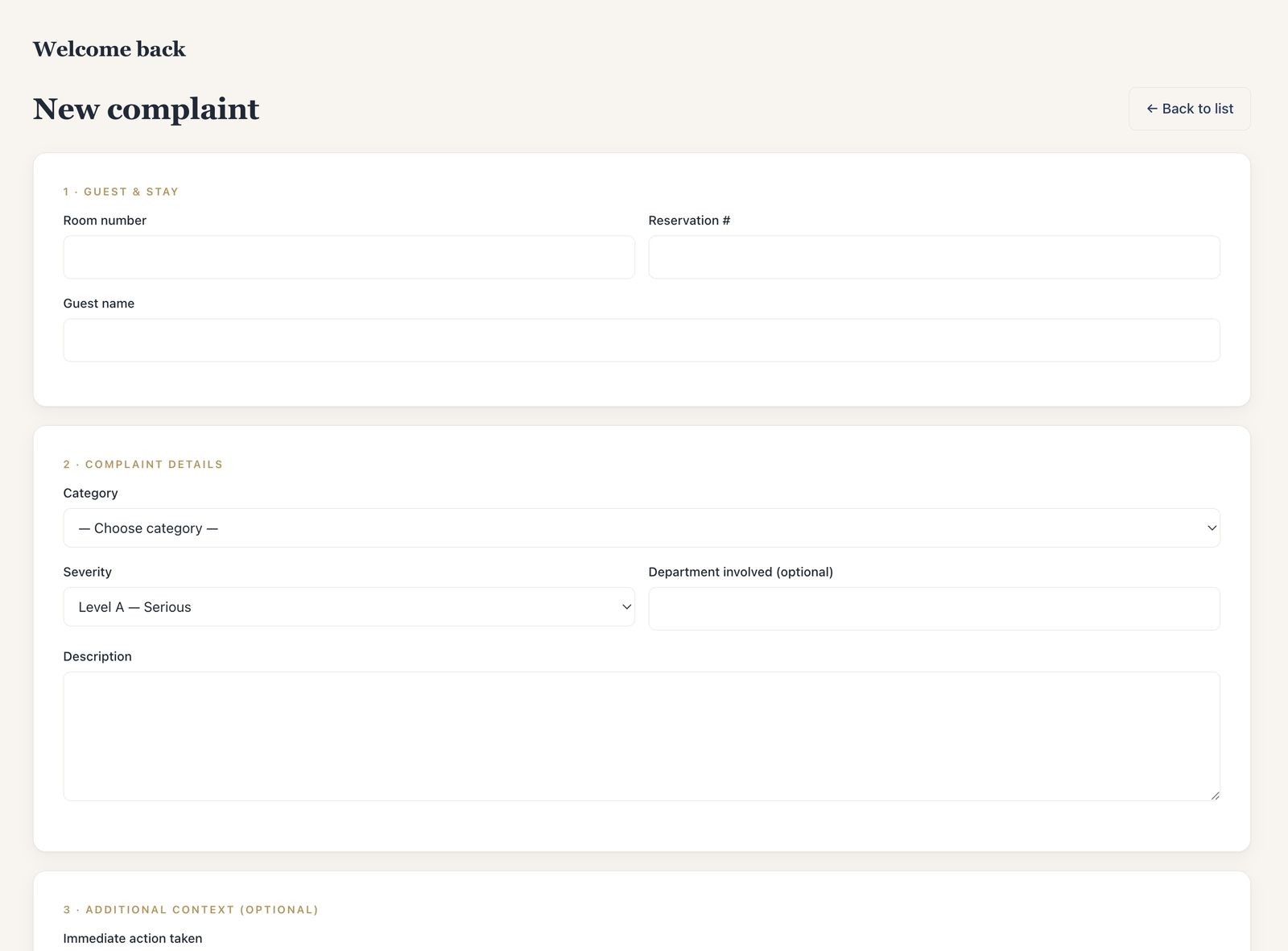
Record the issue while the details are fresh.
- Logging an issue
The details the next person needs
Add the guest and room details, what happened, what your team has already done, and what the guest expects next.
- Case types & severity
Categories that fit your hotel
Use your property’s case types and three severity levels: Level A for serious issues, Level B for moderate issues and Level C for standard issues.
- Shared accounts
A name on each entry
With shared front-desk accounts, staff select the team member recording each case or follow-up.
- Unsure?
“Not sure — needs review”
If you’re unsure how to classify the issue, select “Not sure — needs review” so a manager can help.
Make the next step clear.
- Case plan
Assign the person responsible
Set the responsible team, person and next action. The assigned person receives an email with a link to the case.
- Commitments
Set the next guest update
Record when the guest should hear back and a target time for the work. Overdue updates are flagged and reminder emails help the team follow up.
- Follow-up timeline
Keep the follow-up history together
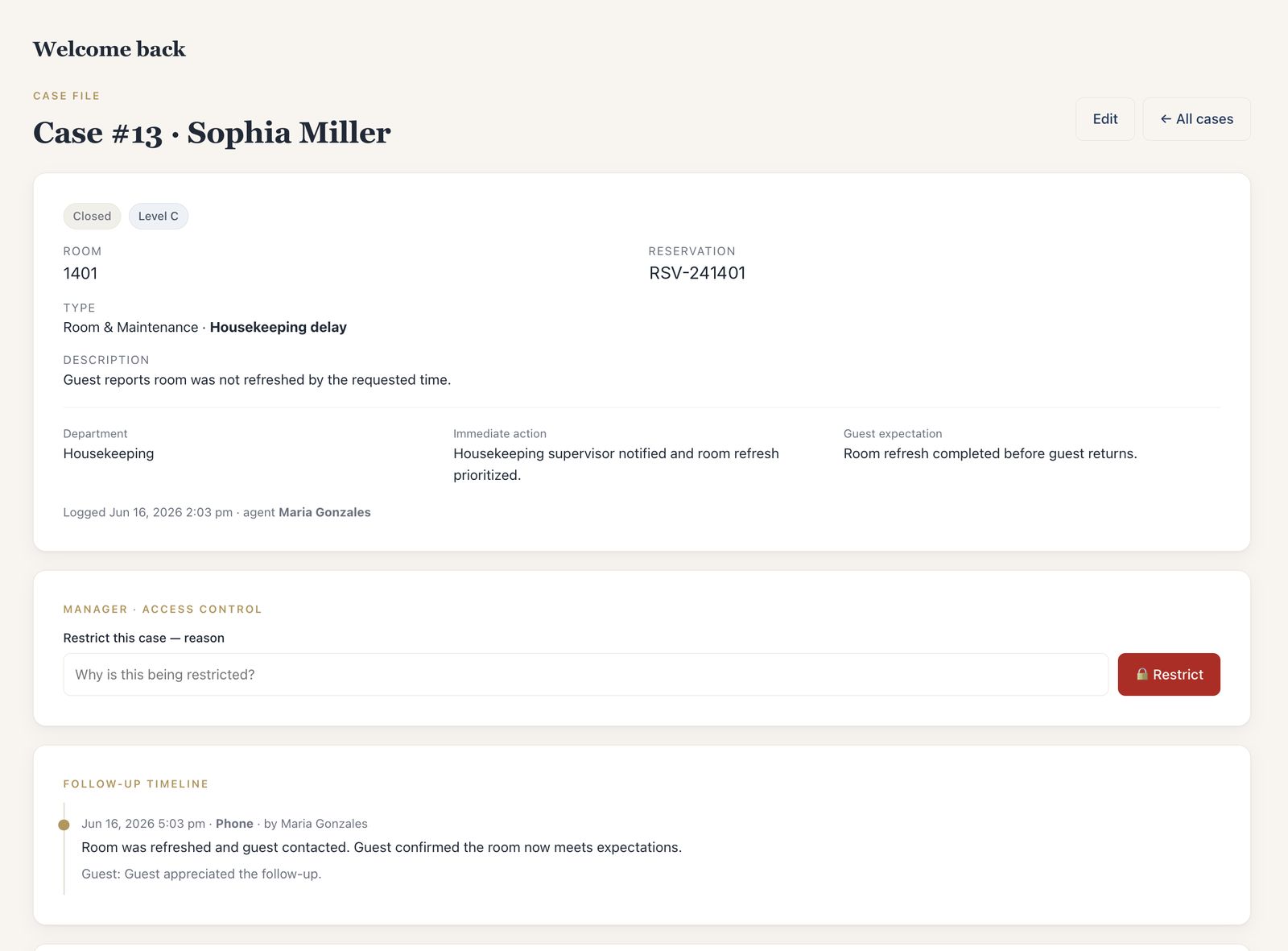
Record how the guest was contacted, what was discussed, their response and what happens next.
- Compensation
Record compensation and approval
Add what was proposed, its value and the reason. Staff recommendations wait for a manager’s decision, which stays with the case.
- Escalation
Ask management to step in
Staff can escalate an open case and explain why it needs management’s attention.
- Guest statement
The guest’s own account
Record a statement with the guest on the case; it prints on the Guest’s Version page of the Incident Report.
- Close & reopen
Manager review before closing
Resolved cases wait for manager review; closing captures a summary, final resolution and guest satisfaction. Reopening requires a reason.
See what needs management’s attention.
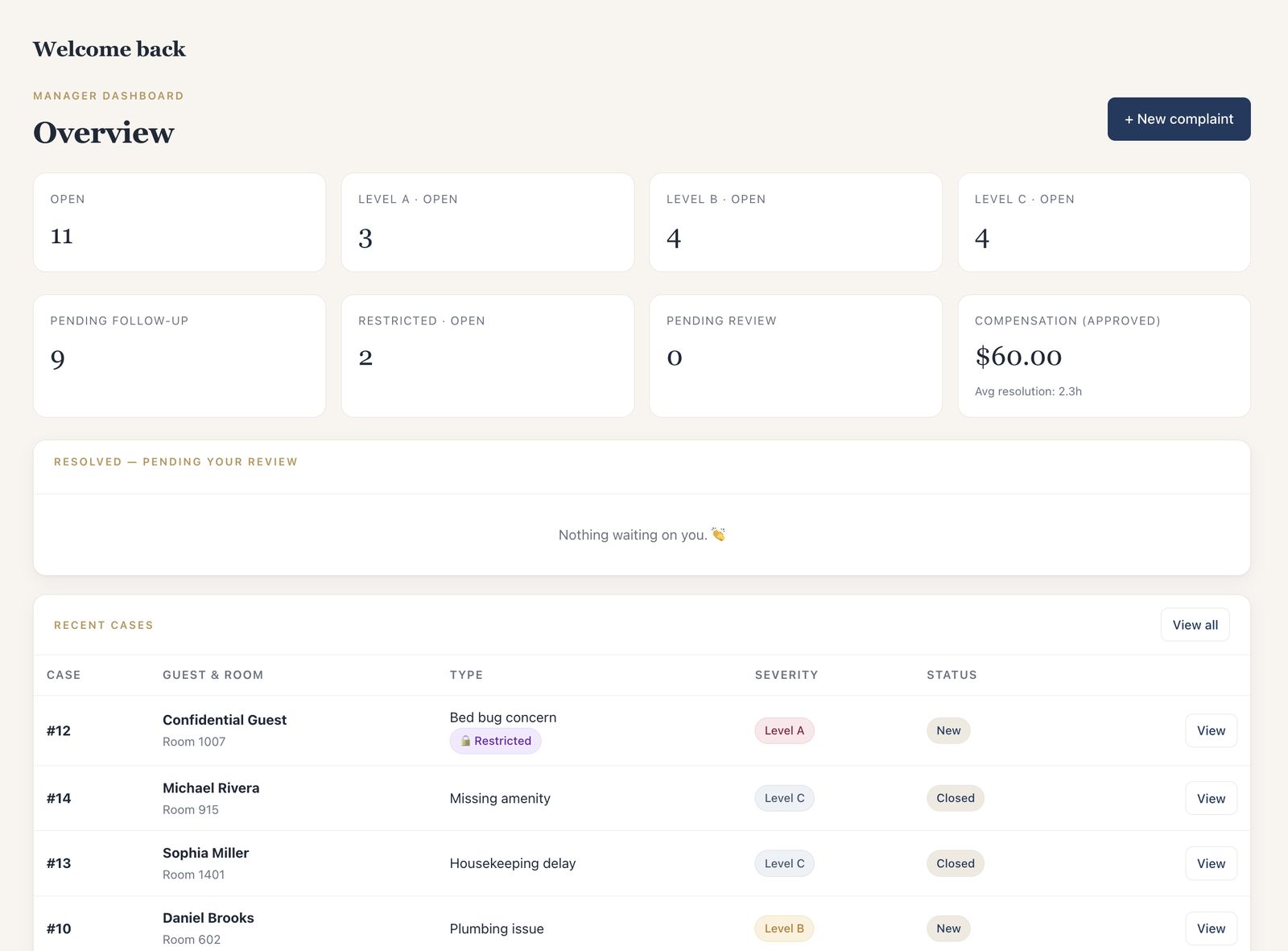
Review overdue updates, unassigned cases, compensation requests and cases waiting for a manager’s review.
- Overview
What needs attention
Escalated, overdue guest updates, overdue internal targets, unassigned, needs classification, compensation awaiting approval and cases pending your review.
- Patterns
Recurring issues
See the most common case types and rooms with repeated issues over the last 30 days.
- Reports
Reports by date
Review case status, severity, resolution times, how long cases have been open and compensation decisions.
- Daily summary
A daily email summary
New cases by severity, open Level A/B, overdue commitments, cases waiting on a first follow-up, pending review and compensation approved.
- Exports
Export the records you need
Export cases, compensation, follow-ups and the audit log.
- Incident Report
Print any case
A formal report built from the case, with signature lines and a Guest’s Version page. Details
Control access to sensitive cases.
- Restricted cases
Automatic by case type, or by a manager
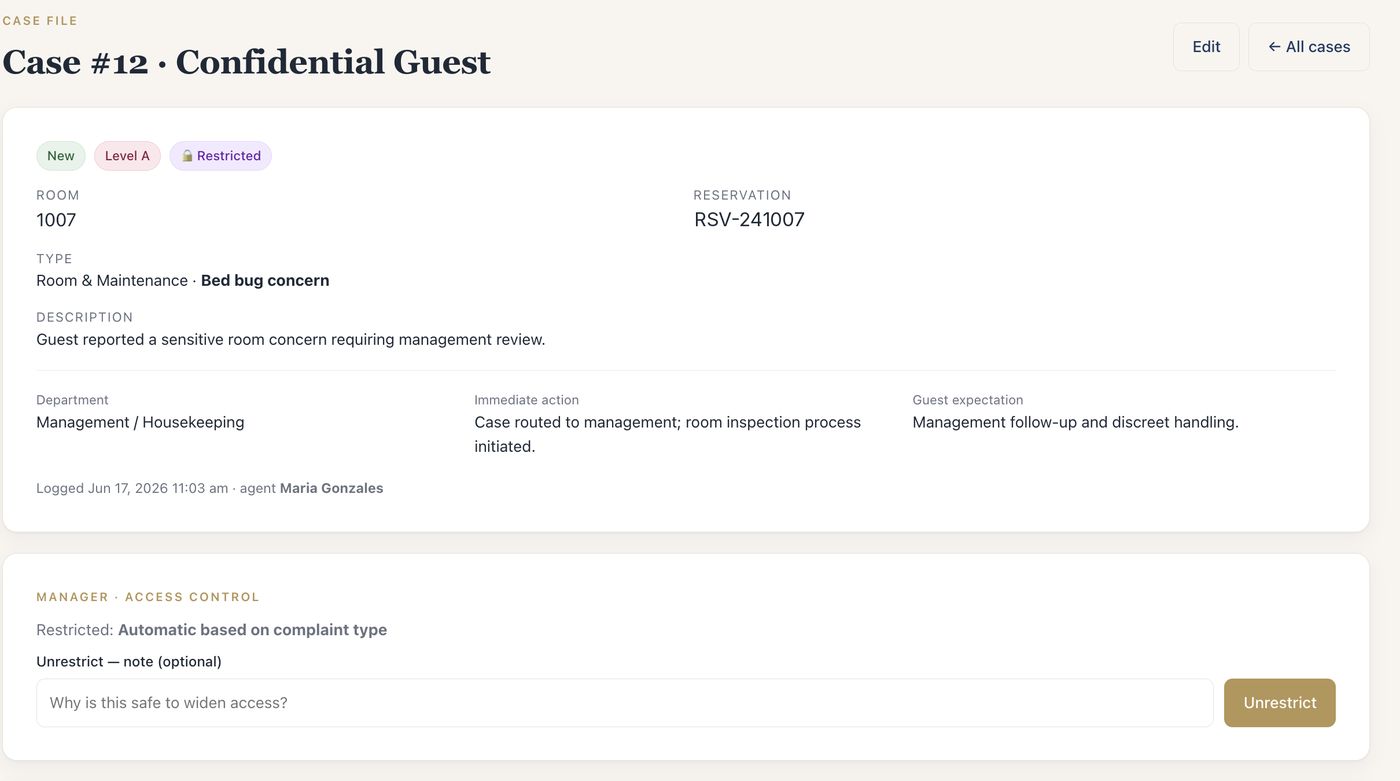
Selected case types can be restricted automatically. Managers can also restrict a case and record why.
- Neutral confirmation
Give the desk a clear confirmation
Front-desk staff who log a restricted case see that it was routed to management — not the case itself.
- Quiet notifications
Confidential emails without guest details
Notification emails about restricted cases leave guest information out.
- Audit log
Review recorded activity
Case changes, assignments, restrictions, compensation decisions and report prints are logged, and exportable.
Set it up around your property.
- Template
Your departments and case types
Departments, case types and compensation types, ready to rename, hide or extend.
- People
Your team and roles
Managers invite staff by email and assign front desk, supervisor or manager roles. Unlimited users.
- Notifications
Your notification settings
Choose additional recipients for case and summary emails; reminder emails hold off during overnight quiet hours.
- Access
Your property’s sign-in page
Each property signs in at its own
yourhotel.myhotelcare.comaddress, in any modern browser.
MyHotelCare does not currently include a PMS integration, SMS or WhatsApp messaging, a maintenance work-order system, or group-wide reporting across properties. It routes cases to departments such as engineering and keeps them open until resolved. More in the FAQ.
See how it would work at your hotel.
We’ll walk through a sample guest issue, show what your team and managers can do, and answer your questions. The demo takes about 30 minutes, and you don’t need to share guest information.